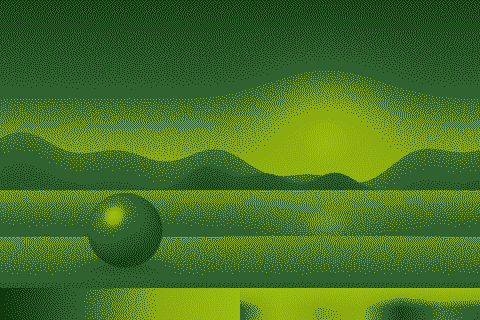
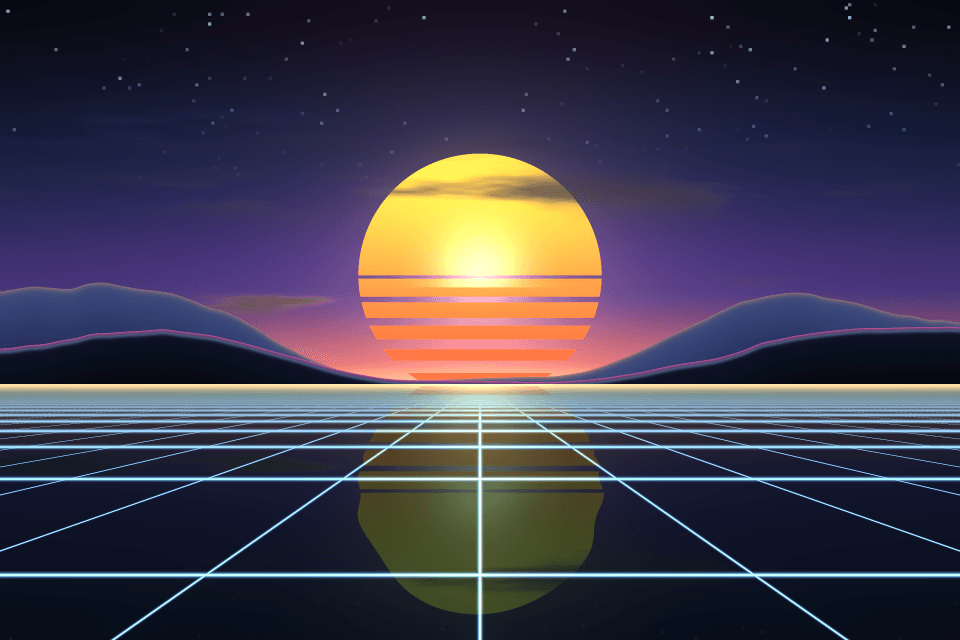
Consoles & computers
Game Boy Palette
The original Game Boy shows every image in just four shades of green. The hex codes #0F380F, #306230, #8BAC0F and #9BBC0F are a widely used approximation of its screen, and a staple of pixel art. Below are all four with RGB values, the grays of the Game Boy Pocket, and a free way to turn any photo into Game Boy art in your browser.
- Colors
- 4
- Year
- 1989
- Hardware
- Nintendo DMG-01, 160 × 144 LCD
- Match
- By brightness
The Game Boy colors
The Game Boy has no RGB palette: its screen shows four levels of darkness and the green is the LCD’s own tint. These values, the common version (Lospec’s “Original Gameboy”), approximate how the original screen looks; others exist, like the darker, bluer #294139 to #7B8210 on Wikipedia. The Pocket shades follow Wikipedia’s list of console palettes.
Game Boy (1989)
| Swatch | Name | Hex | RGB |
|---|---|---|---|
| Darkest (shade 3) | #0F380F | 15, 56, 15 | |
| Dark (shade 2) | #306230 | 48, 98, 48 | |
| Light (shade 1) | #8BAC0F | 139, 172, 15 | |
| Lightest (shade 0) | #9BBC0F | 155, 188, 15 |
Game Boy Pocket (1996)
Download:HEX file of Game Boy PocketGPL file of Game Boy Pocket
| Swatch | Name | Hex | RGB |
|---|---|---|---|
| Darkest (shade 3) | #181818 | 24, 24, 24 | |
| Dark (shade 2) | #4A5138 | 74, 81, 56 | |
| Light (shade 1) | #8C926B | 140, 146, 107 | |
| Lightest (shade 0) | #C5CAA4 | 197, 202, 164 |
Where the Game Boy greens come from
Nintendo released the Game Boy in Japan on April 21, 1989, and in North America that July. Nintendo Research & Development 1, under Gunpei Yokoi and Satoru Okada, paired an inexpensive reflective STN LCD with four AA batteries, and the screen’s greenish tint became as recognizable as the games themselves. Together with the Game Boy Color, it sold an estimated 118.69 million units.
The screen can’t show color at all. Each of its 160 × 144 pixels is one of four levels of darkness, and the green comes from the LCD. The Game Boy Pocket of 1996 switched to an FSTN screen with a true black-and-white look, which is why its shades are much grayer, with only an olive hint.
How the Game Boy draws four shades
Graphics are built from 8 × 8 tiles with 2 bits per pixel, so each pixel holds a number from 0 to 3. A palette register maps those numbers to the four shades: the background has one (BGP), and sprites have two (OBP0 and OBP1), in which number 0 is transparent. Games rewrite these registers to fade the screen in and out, or to flash an enemy when it’s hit.
Because the screen shows only brightness, an image should be converted to Game Boy colors by brightness, not by hue: a blue sky has no “nearest” green. PixelSynth matches this palette by brightness, sorting the four greens from dark to light and dithering the image’s luminance along them.
How to make Game Boy-style images
- Open the editor with the Game Boy palette selected and drop in your image.
- Set Output size to 160 pixels, the Game Boy’s own resolution, or apply the pixel art preset and switch its palette to Game Boy.
- Pick an algorithm: Bayer 4×4 gives an even, tile-like pattern, Floyd–Steinberg keeps the most detail in photos.
- Raise the contrast a little so the image uses all four shades, and save the PNG at ×4 or ×8 to keep every pixel crisp.
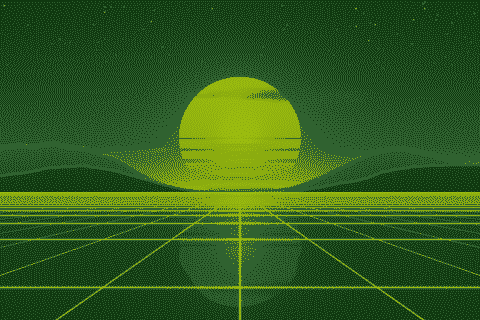
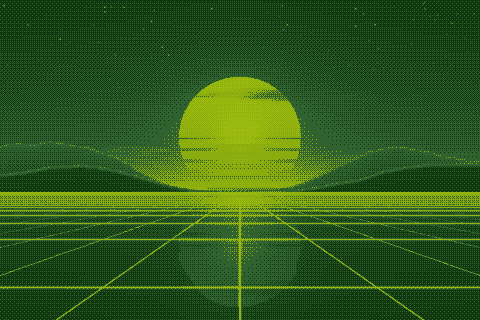
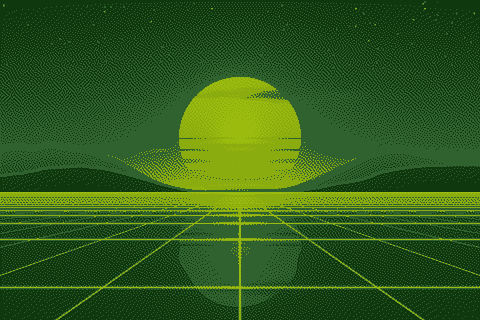
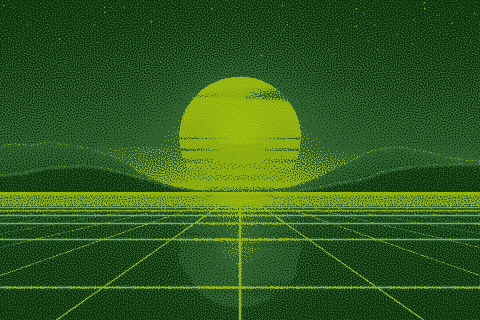
The Game Boy palette with different dithering algorithms
The same sunset at 480 × 320 pixels, shown at actual size.
Try the Game Boy palette on your image
Open the editor with Game Boy already selected, drop in a photo or an animated GIF, pick a dithering algorithm and export a PNG or an animated GIF. Free, no account, no watermark, and your image never leaves your device.
Open Game Boy in the editorGame Boy palette FAQ
Did the Game Boy have an official color palette?
No. The LCD shows four levels of darkness and its green tint comes from the screen, so every RGB version, including this one, is an approximation.
Is this the Game Boy Color palette?
No. The Game Boy Color (1998) picked its colors from 32,768 and could show up to 56 at once. These four greens belong to the original Game Boy.