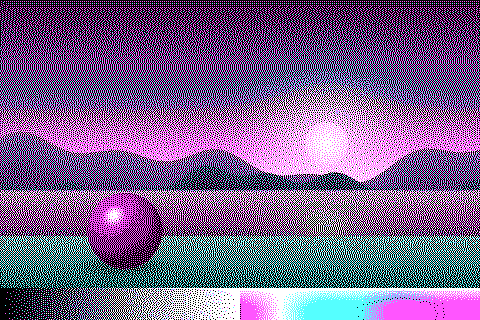
Consoles & computers
CGA Palette
IBM’s Color Graphics Adapter (CGA), from 1981, gave the first IBM PCs their colors, and its 4-color graphics mode created the look of early DOS games: cyan, magenta and white, or green, red and yellow, on black. Here are both classic CGA palettes with hex codes, how the card chose them, and a free way to dither any image to CGA colors.
- Colors
- 4
- Year
- 1981
- Hardware
- IBM Color Graphics Adapter
- Match
- By color
The CGA colors
Values are the standard RGBI levels (#00, #55, #AA, #FF), with the background set to black as most programs did, listed in palette order, 0 to 3.
Palette 1, high intensity
Download:HEX file of CGA cyan/magentaGPL file of CGA cyan/magenta
| Swatch | Name | Hex | RGB |
|---|---|---|---|
| Black (background) | #000000 | 0, 0, 0 | |
| Light cyan | #55FFFF | 85, 255, 255 | |
| Light magenta | #FF55FF | 255, 85, 255 | |
| White | #FFFFFF | 255, 255, 255 |
Palette 0, high intensity
| Swatch | Name | Hex | RGB |
|---|---|---|---|
| Black (background) | #000000 | 0, 0, 0 | |
| Light green | #55FF55 | 85, 255, 85 | |
| Light red | #FF5555 | 255, 85, 85 | |
| Yellow | #FFFF55 | 255, 255, 85 |
Four colors at 320 × 200
CGA was IBM’s first color graphics card, introduced in 1981 with the IBM PC. Its text mode shows 16 colors, built from red, green and blue signals plus an intensity bit (RGBI). Graphics were limited by memory: at 320 × 200 each pixel had 2 bits, so 4 colors, and at 640 × 200 just 2.
In 320 × 200, a program picked one of two fixed palettes, each in low or high intensity: palette 0 with green, red and yellow (brown in low intensity), and palette 1 with cyan, magenta and white (light gray). The fourth color, the background, could be any of the 16. PixelSynth offers both palettes at high intensity on black, the best-known combinations.
Brown, mode 5 and composite tricks
On IBM’s 5153 monitor, color 6 should have been dark yellow, but a circuit turns it into brown by lowering its green, which is why the RGBI palette has #AA5500. An undocumented third palette, cyan, red and white, is reachable through mode 5 on RGBI monitors, and some software used it.
On composite monitors and TVs, programmers exploited NTSC color artifacts: carefully placed pixel patterns produced colors the card couldn’t otherwise show. PixelSynth’s CGA presets are the RGBI colors, not these artifact colors. For the full 16, see the EGA palette, whose defaults are the same RGBI set.
How to make CGA-style images
- Open the editor with a CGA palette selected: cyan/magenta or green/red. Both match by color.
- Set Output size to 320 pixels, CGA’s 4-color resolution.
- Use Bayer 2×2 or Bayer 4×4: with four colors, ordered patterns are what make the in-between tones.
- Export at ×2 or ×4. On a 4:3 monitor CGA pixels were a little taller than wide; PixelSynth keeps them square.
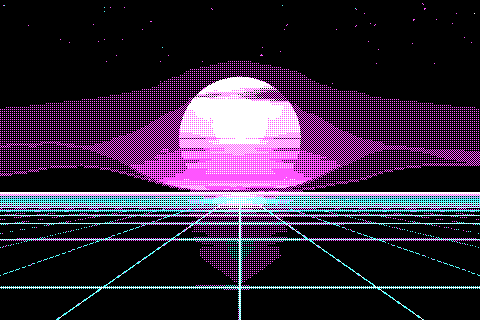
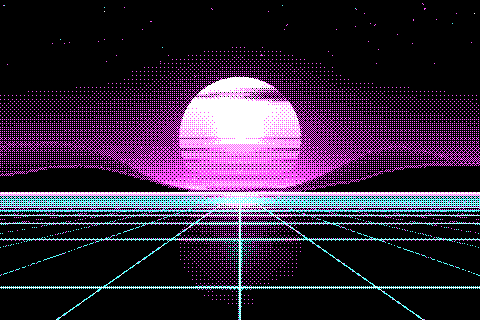
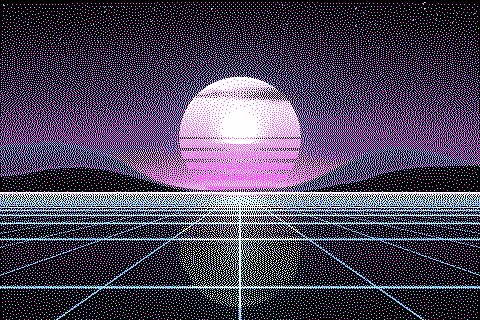
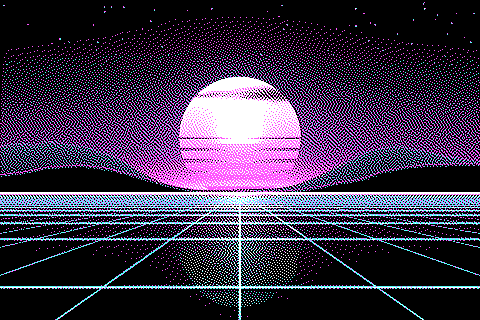
The CGA palette with different dithering algorithms
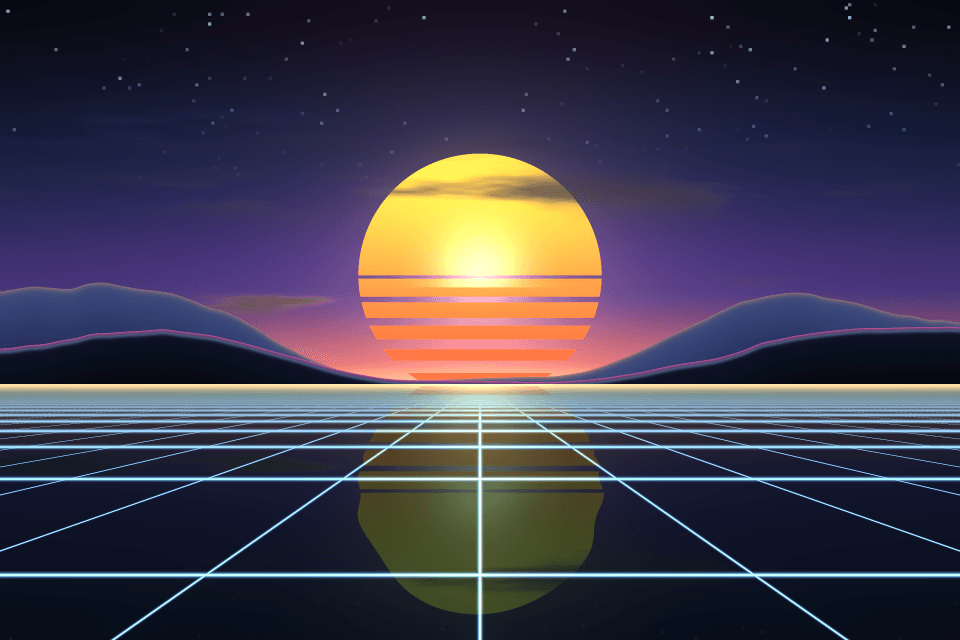
The same sunset at 480 × 320 pixels, shown at actual size.
Try the CGA palette on your image
Open the editor with CGA cyan/magenta already selected, drop in a photo or an animated GIF, pick a dithering algorithm and export a PNG or an animated GIF. Free, no account, no watermark, and your image never leaves your device.
Open CGA cyan/magenta in the editorCGA palette FAQ
Why are old DOS games cyan and magenta?
CGA’s 320 × 200 mode allowed 4 colors from two fixed palettes. Palette 1 at high intensity, black, cyan, magenta and white, is the best known of them.
What’s the difference between CGA and EGA?
CGA (1981) showed 4 colors in its main graphics mode. EGA (1984) showed 16 at once, chosen from 64, at up to 640 × 350 pixels.